One Window.
Every Project in Its Own Space.
KeepIt organizes your open tabs into spaces you can switch between in one click, saves sessions you can restore any time, keeps your Chrome tab groups, and puts idle tabs to sleep so your browser stays fast.
🎁 First 100 users get 30 days Pro free · no card needed- Never reads your page contents
- No ads, no trackers
- Works without an account
- Free plan, 7-day money-back on Pro
First 100 users get 30 days Pro free
No card needed and nothing to cancel. Claim it inside the extension and KeepIt Pro switches on for 30 days.
- Add KeepIt to ChromeIt is free and takes a few seconds.
- Sign in with GoogleOpen KeepIt and tap Upgrade.
- Tap “Claim my free month”Pro is on for 30 days.
One claim per person, while the first 100 spots last. When the 30 days end, your account returns to the Free plan and nothing you saved is deleted. See the offer terms.
Designed for Speed & Simplicity
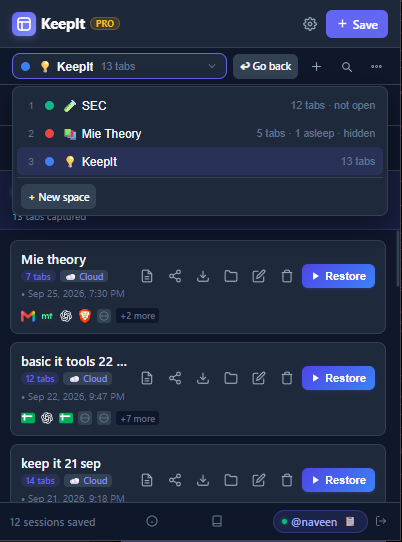
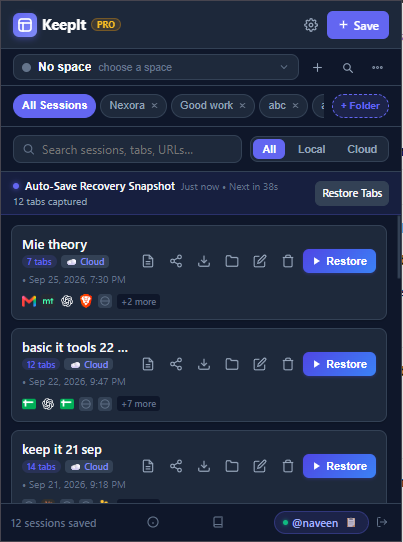
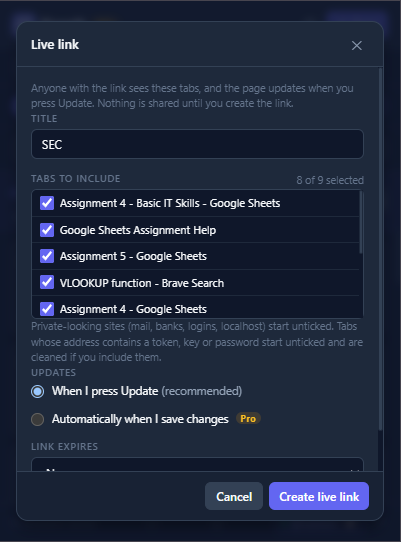
Take a look inside KeepIt's dark-themed Chrome extension.
How KeepIt Works
Three steps, no setup, no account needed.
Put your tabs in a space
Name a space for a project, client or topic. KeepIt remembers its tabs, pinned tabs and tab groups.
Switch in one click
Use the popup, Alt+Shift+K or type kt in the address bar. The tabs you leave wait in one minimized window, not closed.
Never lose your work
Auto-saves, earlier versions and saved sessions bring tabs back after a crash, a restart or an accidental close.
1-Click Session Saving
Instantly snapshot all open tabs or select specific tabs using live search filters. Save locally on disk or sync to the cloud.
Spaces: Tab Workspaces
Give every project its own space and switch in one click. Your tabs, pinned tabs and tab groups come back as you left them, and the space opens on the tab you were last using.
Quick Switcher
Press Alt+Shift+K (Cmd+Shift+K on Mac) and type part of a space name. Or type kt in Chrome's address bar to jump straight to a space or session.
Native Tab Groups Preservation
KeepIt captures native Chrome Tab Group titles, colors, and collapsed states, automatically restoring them when you re-open sessions.
Auto-Freeze Memory Saver
Put idle background tabs to sleep to free memory without closing them. Pick the idle time; pinned tabs, tabs playing audio and tabs you mark "keep awake" are left alone.
Background Auto-Save Snapshots
Continuous window snapshot auto-saves run every 3 minutes (1 min on Pro) to protect against browser crashes or accidental closures.
Drag & Drop Folders
Organize saved sessions into custom folders with effortless HTML5 drag and drop pill navigation.
Peer Session Sharing
Share a session with a link, or send it directly to colleagues and classmates by @username (sending is a Pro feature).
Live Links
Share a list of tabs that stays up to date. Anyone can open it in a browser with no account. You choose the tabs, and private-looking sites start unticked. Free: 1 list of up to 25 tabs. Pro: unlimited, up to 500 tabs, auto-update and expiry.
Notes on Tabs & Spaces
Add a note to a space or session. Turn on “Show notes on tabs” and a small card with your note appears on that page. KeepIt never reads the page itself.
Search Every Space
Type a few letters to find a tab in any space, even a space that is not open, and jump straight to it.
Trash & Version History
Deleted items stay in Trash for 30 days. Earlier versions of your spaces and sessions are kept for 30 days (90 on Pro), and you can export a backup as JSON or HTML.
Duplicates, Merge & Import
Find and close duplicate tabs, merge two sessions into one, import an OneTab list and recover a recently closed window.
Right-Click to Move
Right-click any page and choose KeepIt → Move to space to send that tab to another space. No need to open the popup.
Transparent & Affordable Pricing
Get started for free or upgrade to Pro for unlimited cloud sync and advanced features.
- Unlimited local sessions and folders
- Up to 10 spaces
- Up to 10 cloud-synced sessions
- 3-minute auto-save snapshot frequency
- Tab freezing RAM memory saver
- 1 live link (up to 25 tabs), tab notes and 30-day history
- Unlimited spaces
- Unlimited cloud-synced sessions across devices
- Fast 1-minute auto-save snapshot frequency
- 90-day history and sending sessions by @username
- Unlimited live links (up to 500 tabs) with auto-update and expiry
- Priority updates & developer support
100% 7-Day Money-Back Guarantee
We stand behind KeepIt Pro. If you are not completely satisfied with your subscription for any reason within 7 calendar days of purchase, send an email to contact.naveen.work@gmail.com and we will issue a full 100% refund. Subscriptions are billed securely through Lemon Squeezy, our PCI-DSS compliant merchant of record.
Need Help or Have Questions?
Have questions about KeepIt Pro subscriptions, account data deletion, or feature requests? We're here to help!
✉️ Contact Support: contact.naveen.work@gmail.com